The BOINC client runs quietly in the background and uses your idle CPU time to contribute to the search. It works on Windows and Linux (x86-64).
Note: This is a non-standard BOINC setup, and some BOINC features may not work as expected.
Step 1 — Create an account
You need an account to use the BOINC client. Create one here if you don't have one already.
Step 2 — Install BOINC
Download and install BOINC from boinc.berkeley.edu. Any recent version works.
Step 3 — Attach to the project
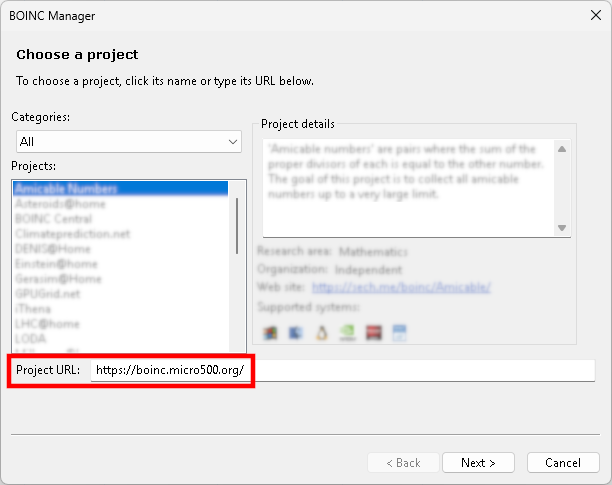
Open BOINC Manager and select Tools → Add Project. Replace the Project URL field with:
https://boinc.micro500.org/
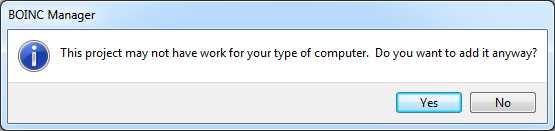
If BOINC shows a warning that the project has no work for your computer, click through it to continue.
Step 4 — Get your BOINC password
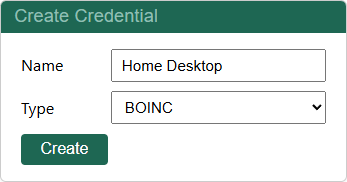
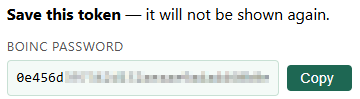
When BOINC prompts you for credentials, go to your API Credentials page and create a credential with type BOINC. Copy the password shown.
Step 5 — Finish login and let it run
Back in BOINC, enter:
- Email address: the email address on your account
- Password: the BOINC password you copied in Step 4
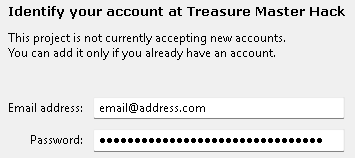
BOINC will download the compute application and start working automatically. By default it runs only when your computer is idle and stops when you start using it.
You can check your contribution progress on your stats page.
Troubleshooting
- Attachment fails: Double-check that you're using the BOINC password from your credentials page — not your account login password.
- No work received: The project may temporarily have no available tasks. BOINC will retry automatically.
- Questions? Ask on Discord.